
Last Updated: 19th August 2026
Thank you for choosing our product to protect a family member, a pet, or a personal asset of value. We appreciate your trust in our products and services.
This quick guide will walk you through setup, features, and settings to get the most out of your tracking experience.
Please also refer to the full user instructions that came with your product. Please also read the:
Before You Start: First-Time Activation & GPS Calibration
Before using your device for the first time after successful activation, you must acquire a GPS signal to calibrate its location.
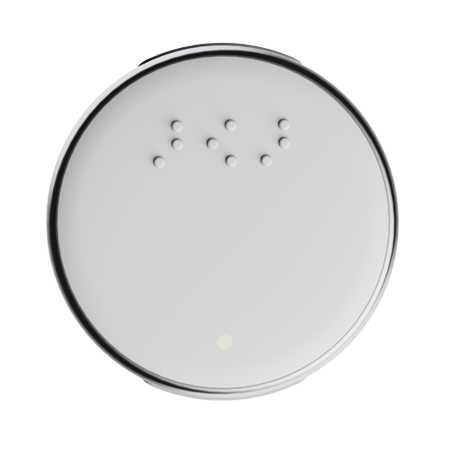
Before using the VN Button, ensure it is fully charged. Connect the supplied charging cable to the included wall adapter, then plug the adapter into an available AC wall outlet. Place the VN Button onto the charging pad with the button facing upward. The charging LED will illuminate to indicate that charging is in progress. Once the LED turns off, the device is fully charged.
- Turning the Device On and Off
To power the VN Button on or off, press and hold the center button for at least 5 seconds.
Note: When turning on, a flashing blue and green LED indicates that the device is active and attempting to establish a network and satellite connection.
When turning off, the LED will turn off completely.
- Triggering an SOS Alarm
To send an SOS alert, quickly press the center button twice (double-press). - A successful transmission is confirmed by three short red LED flashes.
Note: Each SOS alarm triggers one or more notification types—SMS, WhatsApp, email, push notification, or a combination—based on your preferences set in the Notifications section of the VN App.
SOS messages are always given the highest priority over all other event notifications.
When you first turn on the device (by long-pressing the SOS button for about 5 seconds until the LED lights up and blinks green/blue in intervals), the blinking green light means no GPS signal has been acquired yet. A blue blinking light means that no network connection has been established yet.
Follow these steps:
- Go outside – Hold the device in your hand and move to an open outdoor area.
- Make sure the device is turned ON.
- Wait for the green LED to stop blinking – Once the LED stops blinking, GPS signal has been acquired.
- Log in to the App and check the device’s location on the map.
- Tap the device icon on the map to open the details pop-up.
- Verify the address shown – Note that the address is approximate and may not reflect the exact location due to normal GPS tolerances.
Important Notes:
- Environmental factors – Cloudy sky, tall surrounding buildings, heavy rain, or snowfall can affect GPS signal reception. For first-time acquisition, choose a clear day with little or no cloud cover.
- One-time task – This step only needs to be performed once after a device is registered.
- Re-registration – If you unregister the device and register it again, you will need to repeat this GPS acquisition process.
Intended Use
This GPS tracking app and associated device are intended to help users monitor the location of persons (including family members, elderly individuals, or persons with cognitive impairments), pets, and personal assets. The app provides location data, geofence alerts, and event notifications to support safety and peace of mind.
This product is not a certified medical device. It does not replace professional medical supervision, emergency response services, or prescribed caregiving arrangements. In case of a medical emergency, always call your local emergency number immediately.
Safety Hints
Do not rely solely on this device for life-saving or critical emergency situations. Network outages, battery depletion, GPS signal loss, or privacy mode activation may interrupt location reporting.
Ensure the device is always sufficiently charged and placed in a location with adequate GPS and cellular coverage. Check the device status regularly in the app.
When using the device with a person who requires supervision, obtain all necessary consents in accordance with applicable laws. You are responsible for complying with local, state, and federal privacy regulations, including but not limited to the GDPR (EU) and relevant US state privacy laws.
Fall detection is a supportive feature, not a medical alert system. False positives or missed detections may occur. If fall detection is critical to your use case, consider supplementing with additional certified medical alert devices.
Enable notifications and assign geofences correctly. Unassigned geofences will not trigger alerts. Test the system after setup to confirm proper functionality.
Privacy Mode disables location transmission. Use this feature only when you intentionally want to stop tracking. The device’s position will become unknown to the app until Privacy Mode is turned off.
Keep the app and device firmware updated to benefit from security patches and performance improvements.
Store the device out of reach of small children if it contains small parts or a rechargeable battery that could pose a choking or burn hazard.
The device is not waterproof unless explicitly stated in the product specifications that came with your hardware. Refer to the full user instructions for environmental ratings.
If you are using this product in a healthcare or assisted living setting, consult with your facility’s compliance officer regarding additional requirements such as data retention policies, access controls, and patient consent documentation.
Account Registration
To start using the app, you must create an account.
- Required information: Valid email address, your name, and a password.
- Email address cannot be changed after registration. Please double-check for typos.
- Verification: We will validate your email during signup. You must complete this verification to proceed.
- Legal acceptance: You must accept our Terms of Service and Privacy Policy.
- App permissions: Grant access to location services and notifications. Both are required to validate your device and determine the user’s position.
- Data storage: All your data is stored securely on AWS servers located in Frankfurt and Singapore.
Once your account is verified and permissions granted, you are ready to register a device.
Device Registration
Device registration is a two-step process.
Step A – QR Code Scanning
Scan the QR code on your device to verify its authenticity.
Step B – Owner Profile
Create an owner profile for this device. The owner profile describes the device’s purpose and can be different for each device you own.
Choose the device type:
- Person
- Pet
- Personal asset (for example, bike, luggage, equipment)
Note: The owner profile can be updated later.
Important: To fully use the app, both the Account Registration and the Owner Profile must be completed. Incomplete setup will block tracking features.
Quick Steps to Start Tracking
Follow these steps in order:
Step 1 – Create a Geofence (Settings -> Geofences)
- Assign the geofence to your device.
- No notifications will be sent unless a geofence is assigned.
- Turn on notifications using the toggle on the right side.
- You can optionally enable WhatsApp notifications separately.
- There is no limit on how many geofences you can create.
- Be mindful: every event triggers a notification. Too many geofences may cause a high volume of push, email, or WhatsApp alerts.
Step 2 – Create a Notification Profile (Settings -> Notifications Control)
- Select notification type and channel.
- Add an optional description.
- This profile controls how you receive event alerts.
Standard Geofence vs. Safe Zone
Standard Geofence
A virtual boundary you create and assign to a device. When the device crosses this boundary, you can receive alerts, but the tracking interval remains unchanged.
Safe Zone
A standard geofence that has been explicitly flagged as a Safe Zone using the Safe Zone icon on the My Device page (device list). Marking a geofence as a Safe Zone changes how often the device reports its location to save battery.
How It Works with a Safe Zone
When your device enters a Safe Zone, the tracking interval is significantly reduced with fewer updates to preserve battery life. When your device exits the Safe Zone, the tracking interval automatically switches to 10 seconds for faster updates. For special situations, you can manually select 3-second updates when actively tracking a moving person, pet, or asset, such as during a recovery situation.
Visual Indicator: Safe Zone Color
To help you quickly identify which geofences are currently flagged as Safe Zones, the map will show them in a distinct dark green color. When you mark a geofence as a Safe Zone, it turns dark green on the map. When you remove the Safe Zone flag from a device, the geofence reverts to its original color if no other devices still use it as a Safe Zone. If the same geofence is assigned to multiple devices, it remains dark green as long as at least one device still has it marked as a Safe Zone.
Example Scenarios
Single Device: You mark “Home” as a Safe Zone for your car tracker. The geofence turns dark green. You remove the Safe Zone flag and the geofence reverts to its previous color.
Multiple Devices: You mark “Office” as a Safe Zone for both your car and your bike tracker. The geofence turns dark green. You remove the Safe Zone flag from your bike only and the geofence remains dark green because it is still a Safe Zone for your car. You remove the Safe Zone flag from your car and the geofence reverts to its previous color.
Important Notes
Always check your Safe Zone settings whenever you create or update a geofence assigned to a device. The Safe Zone flag determines how the device behaves when entering or leaving the area. Colors are preserved per user. If two different users share the same geofence, removing the Safe Zone flag for one user does not affect the other user’s Safe Zone settings or color.
Example: Typical Safe Zone Setup
Your Home
Create a geofence around your home address. Assign it to your vehicle tracker. Mark it as a Safe Zone using the Safe Zone icon. The geofence turns dark green. Whenever your vehicle is parked at home, tracking updates are reduced to save battery. When you drive away, tracking automatically switches to 10-second updates for accurate monitoring.
Summary
A standard geofence does not change the tracking interval and uses the original color on the map. A Safe Zone reduces tracking inside the zone, switches to fast tracking outside, and appears dark green on the map. The dark green color persists if any device still uses the geofence as a Safe Zone. Safe Zone also helps save battery life.
Tracking Modes
Go to Settings -> Device Control to select a tracking mode.
Real Time: 3 seconds update interval. Fast battery consuming.
Tracking: 10 seconds update interval.
Monitoring: 10 minutes update interval.
Auto Mode (Recommended): Selects update interval automatically based on speed and distance.
Additional Device Controls
In Settings -> Device Control, you can also manage these features.
Fall Detection
- Detects if a device has fallen or a strong vibration event.
- Triggers a “Fall Detection” SOS event.
- Default is ON.
- To disable, move the toggle to the left or OFF position.
Reset Odometer
- Resets the internal device odometer back to zero.
- Recommended: Perform this task once the device has registered its very first position after device activation.
Privacy Mode
- When Privacy Mode is turned ON, no position data is sent to the tracking server.
- This feature should only be used whenever you would like to have full privacy and not expose the device’s location.
- Warning: If turned on, the position of the device is unknown.
- Default is OFF.
Night Light
- Turn the night light on to support finding the device in dark environments.
- Default is OFF.
Important: The device must be online to change any device settings. Make sure that the device is turned on and appears as “Online” in the App.
General Settings
In the Settings area you can:
- Change the App language
- Update your name and password
- Set general preferences
Reports Section
The Reports section allows you to:
- Check device events
- Replay the daily recorded track
- Get an activities summary
- View a stops summary
Need More Help?
If you encounter any issues, please contact support. Make sure your device is online and both account and owner profile are completed before troubleshooting.
Support Contact Form
Legal Disclaimer
For European Union
This product processes personal location data as defined under the General Data Protection Regulation (GDPR). The data controller is the user who creates an account and registers a device. By using this app, you confirm that you have obtained all necessary consents from any person whose location is being tracked, or that you have a legitimate legal basis for such processing.
You have the right to access, rectify, erase, restrict processing of, and port your data. You also have the right to withdraw consent at any time without affecting the lawfulness of processing based on consent before its withdrawal. To exercise these rights, use the settings within the app or contact support.
Location data is stored on AWS servers located in Frankfurt and Singapore. Data retention periods are determined by the user. It is your responsibility to inform any tracked individual about the collection, storage, and sharing of their location data.
This product is not a substitute for professional emergency response services. In a medical or life-threatening emergency, always dial your local emergency number (112 in the EU).
For the US Market
This product is provided “as is” and “as available” without any express or implied warranties, including but not limited to implied warranties of merchantability, fitness for a particular purpose, or non-infringement. We do not guarantee uninterrupted, error-free, or secure operation of the tracking service. GPS signals, cellular networks, and device hardware limitations may cause delays, inaccuracies, or complete failure of location reporting.
This product is not a certified emergency notification system. It is not a replacement for 911 or any local emergency service. Do not rely on this product as a primary means of protecting a person from harm.
Some US states have specific laws regarding electronic tracking of persons, including but not limited to California, Texas, Florida, and New York. You are solely responsible for complying with all applicable state and federal laws, including those requiring consent from all parties before tracking an individual’s location.
The app may collect and transmit location data. By using the service, you consent to such collection and processing. We reserve the right to update this disclaimer as required by changes in law or product functionality.
General Provisions
We shall not be held liable for any direct, indirect, incidental, special, consequential, or punitive damages arising out of your use of or inability to use this product, including but not limited to personal injury, property damage, loss of data, or failure to receive notifications. Your sole remedy is to discontinue use of the product.
This disclaimer does not exclude or limit liability where prohibited by applicable law, including liability for death or personal injury caused by our gross negligence or willful misconduct.
Product Care
To keep your VN Button in optimal condition and ensure reliable performance at all times, follow these simple care instructions.
Cleaning
Gently wipe the device with a soft, lint-free cloth slightly dampened with fresh water or mild soapy water. Avoid harsh chemicals, solvents, or abrasive cleaners, as these may damage the plastic and silicone materials.
Drying
After cleaning or exposure to moisture, dry the device thoroughly with a soft towel. Ensure the button and any openings are completely dry before charging or storing.
Water and Dust Resistance
The VN Button is IP68-rated, meaning it is protected against dust and can withstand immersion in fresh water up to 1.5 meters for up to 30 minutes. However, it is not designed for use in salt water, chlorinated pools, or extreme chemical environments. Rinse with fresh water after exposure to sweat, seawater, or soap.
Storage
Store the device in a cool, dry place away from direct sunlight and extreme temperatures. Avoid placing heavy objects on top of it to prevent damage to the casing or button mechanism.
Charging Port Care
Before charging, always ensure the charging contacts and pad are clean and dry. Dirt or moisture on the contacts may affect charging efficiency.
Regular care will help extend the life of your VN Button and keep it ready for use whenever you need it.
App Version: 1.8.1
Released: 19th August ’26